
IntelliJ IDEA includes a built-in MCP (Model Context Protocol) server that allows AI tools like OpenCode to interact with your IDE. This guide walks you through enabling and configuring the MCP server, then connecting it to OpenCode at the project level.
Step 1: Enable the MCP Plugin
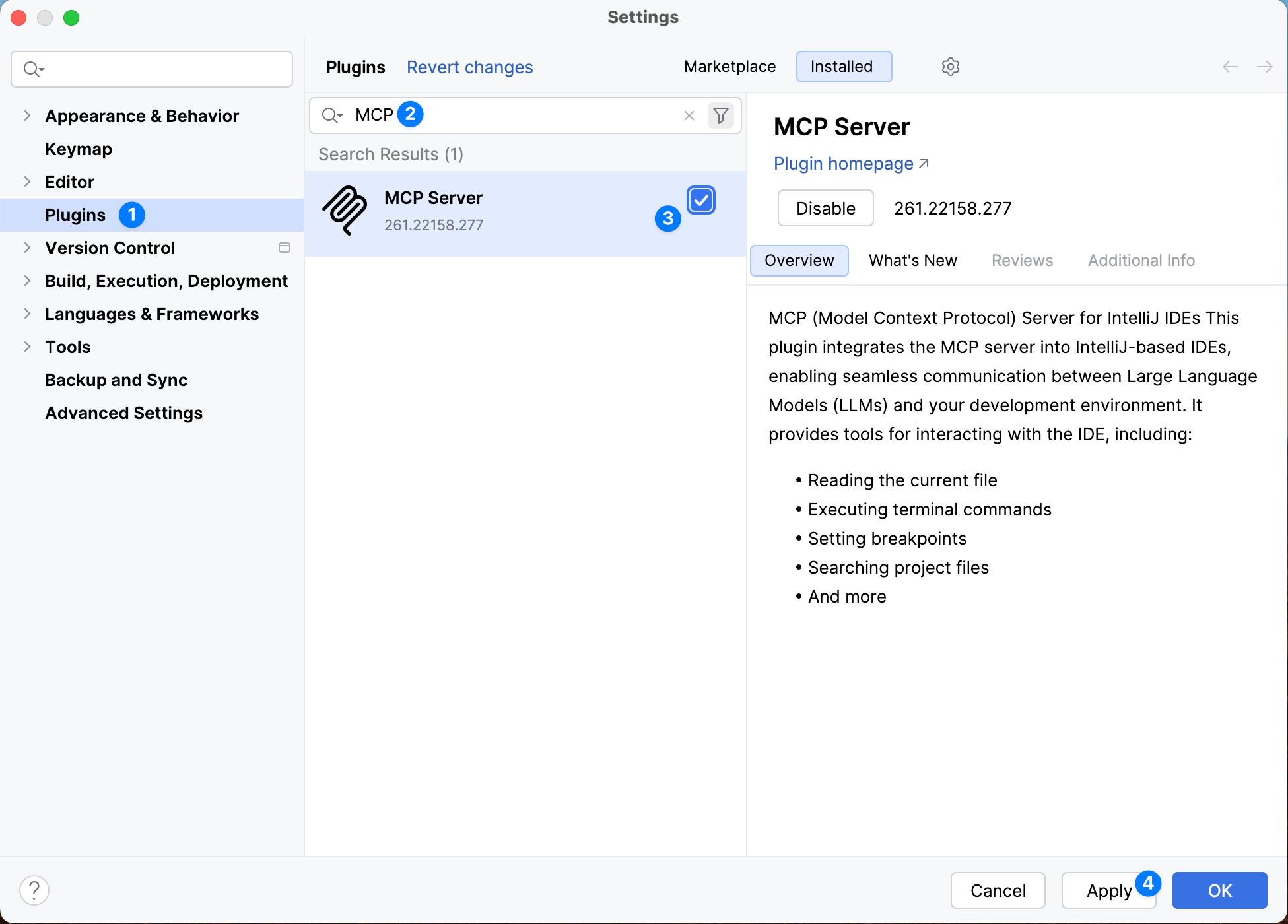
Open IntelliJ IDEA settings and navigate to Settings -> Plugins. Search for “MCP” and verify that the MCP plugin is installed and enabled. If it is not enabled, check the box and click Apply. You may need to restart the IDE for the changes to take effect.
Step 2: Enable the MCP Server
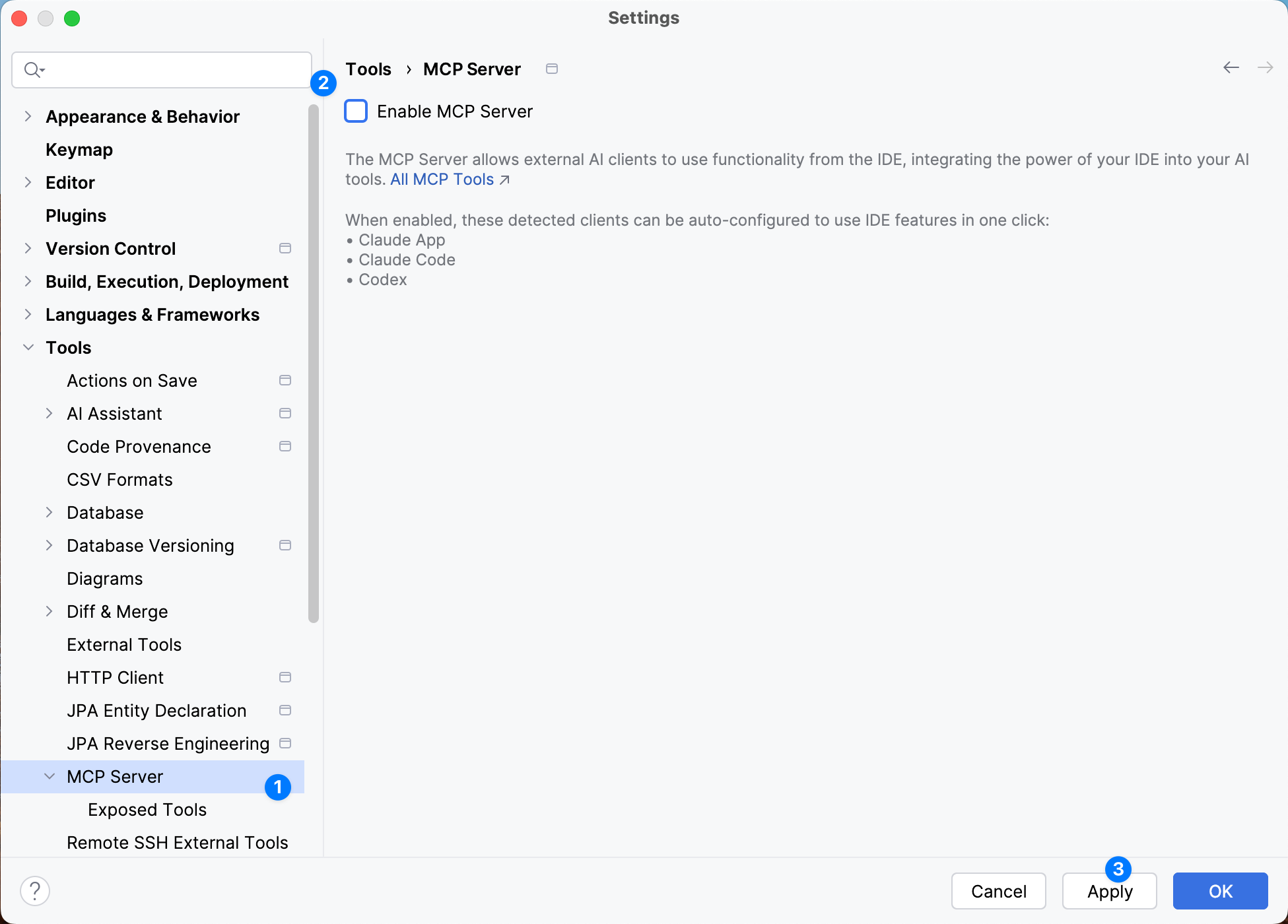
Once the plugin is active, go to Settings -> Tools -> MCP Server. Check the Enable MCP Server option to turn on the server.
Step 3: Confirm Activation
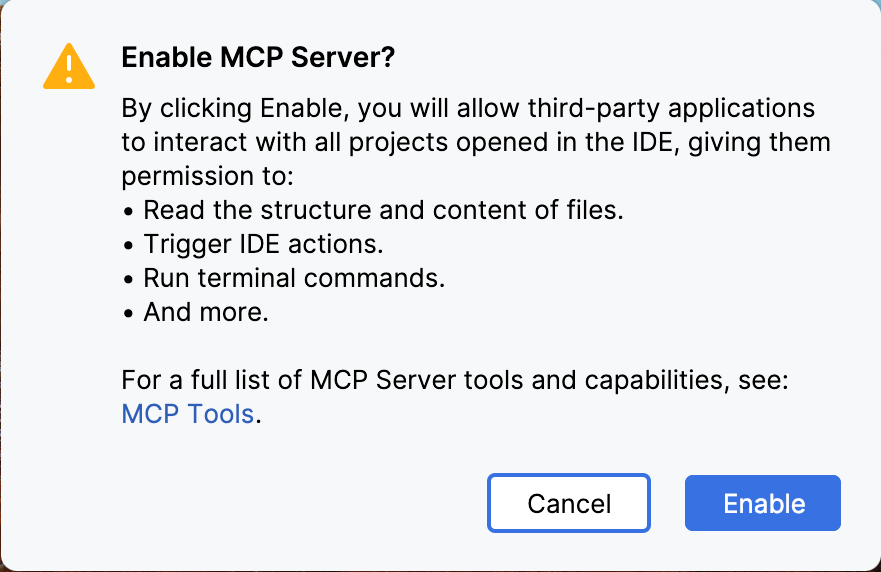
A confirmation dialog will appear. Click Enable to proceed.
Step 4: Copy the SSE Configuration
After enabling the server, you will see the MCP configuration view. Click Copy SSE Config to copy the connection details to your clipboard. You will need this information when configuring OpenCode. Click OK to save the MCP server settings.
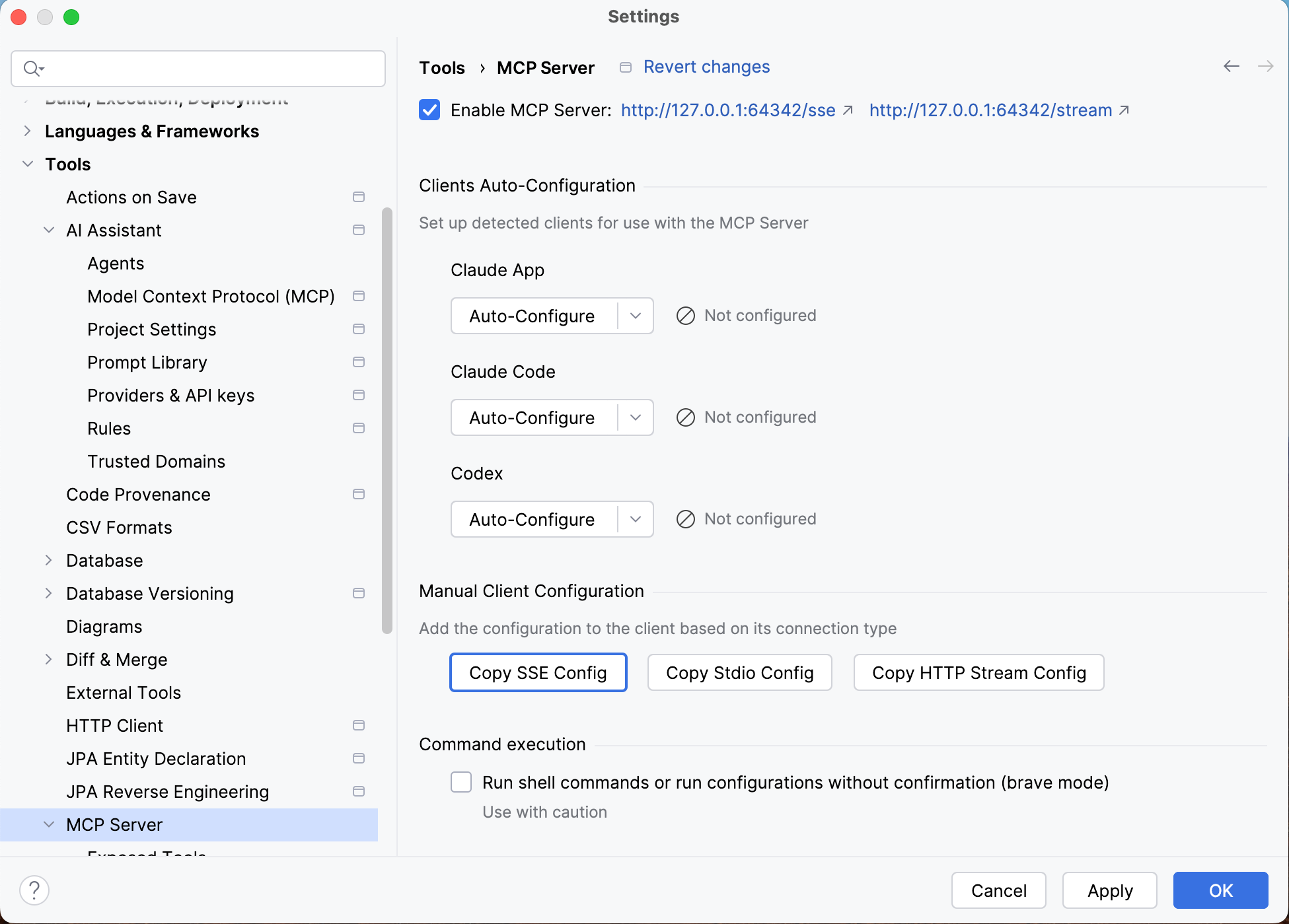
The SSE configuration follows this structure:
1
2
3
4
5
{
  "type": "sse",
  "url": "http://127.0.0.1:64342/sse",
  "headers": {}
}
Step 5: Configure OpenCode
Create or open the opencode.json file at the root of your project. Paste the SSE configuration under the mcp key, but change the type from "sse" to "remote". This tells OpenCode to connect to the IntelliJ MCP server over SSE using the remote transport type.
1
2
3
4
5
6
7
8
9
10
{
  "$schema": "https://opencode.ai/config.json",
  "mcp": {
    "idea": {
      "type": "remote",
      "url": "http://127.0.0.1:64342/sse",
      "headers": {}
    }
  }
}
The key difference is the type field - OpenCode uses "remote" for SSE endpoints, while IntelliJ exports the configuration with "sse".
Step 6: Restart and Verify
Save the opencode.json file and restart your OpenCode client session. For the best results, restart IntelliJ IDEA as well to ensure the MCP server is fully initialized.
Once both are running, OpenCode will connect to IntelliJ IDEA through the MCP server, giving you AI-powered coding assistance with full awareness of your project context, open files, and IDE state.